

Best AI PDF Tools for Students and Professionals: Summarize, Ask Questions and Extract Data
PDF files ಇನ್ನೂ students, researchers, employees, freelancers ಮತ್ತು business professionals ಪ್ರತಿದಿನ ಬಳಸುವ ಪ್ರಮುಖ document format. ಆದರೆ problem PDF ಓದುವುದಲ್ಲ; ದೊಡ್ಡ PDFನಲ್ಲಿ ಬೇಕಾದ information ಅನ್ನು quickly ಹುಡುಕುವುದು, ಅರ್ಥಮಾಡಿಕೊಳ್ಳುವುದು ಮತ್ತು extract ಮಾಡುವುದು.
ಒಂದು 100-page research paper ಇರಬಹುದು. ಒಂದು company report 200 pages ಇರಬಹುದು. Studentಗೆ 300-page textbook ಇರಬಹುದು. Business professionalಗೆ contracts, proposals, invoices, reports ಮತ್ತು meeting documents ಇರಬಹುದು.
ಇಂತಹ ಸಂದರ್ಭಗಳಲ್ಲಿ ಸಾಮಾನ್ಯ PDF reader ಸಾಕಾಗುವುದಿಲ್ಲ.
ಇಲ್ಲಿ AI PDF Tools useful ಆಗುತ್ತವೆ.
ನೀವು PDF upload ಮಾಡಿ:
“ಈ documentನ summary ಕೊಡು.”
“Chapter 4ರಲ್ಲಿ ಮುಖ್ಯ points ಯಾವುವು?”
“ಈ reportನಲ್ಲಿ revenue ಎಷ್ಟು?”
“ಈ two PDFsನ differences ಏನು?”
“ಈ research paperನ methodology explain ಮಾಡು.”
“ಈ tableನ data extract ಮಾಡು.”
ಎಂದು ಕೇಳಬಹುದು.
ಇಂದು ChatGPT, Gemini, Claude, NotebookLM ಮತ್ತು Adobe Acrobatನಂತಹ platforms PDF analysis ಅನ್ನು ತಮ್ಮ workflowsನಲ್ಲಿ ಸೇರಿಸಿವೆ. Dedicated PDF tools ಕೂಡ ಇದೇ ಸಮಸ್ಯೆಯನ್ನು target ಮಾಡುತ್ತಿವೆ.
ಆದರೆ ಎಲ್ಲಾ AI PDF Tools ಒಂದೇ ಕೆಲಸಕ್ಕೆ equally useful ಆಗುವುದಿಲ್ಲ.
ಒಂದು tool research papersಗೆ convenient ಆಗಿರಬಹುದು. ಇನ್ನೊಂದು tool PDF editing ಮತ್ತು signingನಲ್ಲಿ strong ಆಗಿರಬಹುದು. ಮತ್ತೊಂದು tool multiple source documents ಜೊತೆ citation-based researchಗೆ useful ಆಗಬಹುದು.
ಈ articleನಲ್ಲಿ popular AI PDF workflows ಅನ್ನು summarization, question answering, data extraction, research, document editing, citations, privacy, pricing ಮತ್ತು practical use cases ಆಧಾರದಲ್ಲಿ compare ಮಾಡೋಣ.
AI PDF Tools ಎಂದರೇನು?
AI PDF Tools ಎಂದರೆ PDF documentನ content ಅನ್ನು AI ಮೂಲಕ ಓದಿ, summarize ಮಾಡಿ, ಪ್ರಶ್ನೆಗಳಿಗೆ ಉತ್ತರಿಸಿ, information ಹುಡುಕಿ ಅಥವಾ structured data extract ಮಾಡಲು ಸಹಾಯ ಮಾಡುವ tools.
Traditional PDF readerನಲ್ಲಿ ನೀವು:
PDF open ಮಾಡುತ್ತೀರಿ → search ಮಾಡುತ್ತೀರಿ → pages ಓದುತ್ತೀರಿ → notes ತೆಗೆದುಕೊಳ್ಳುತ್ತೀರಿ.
AI PDF workflowನಲ್ಲಿ:
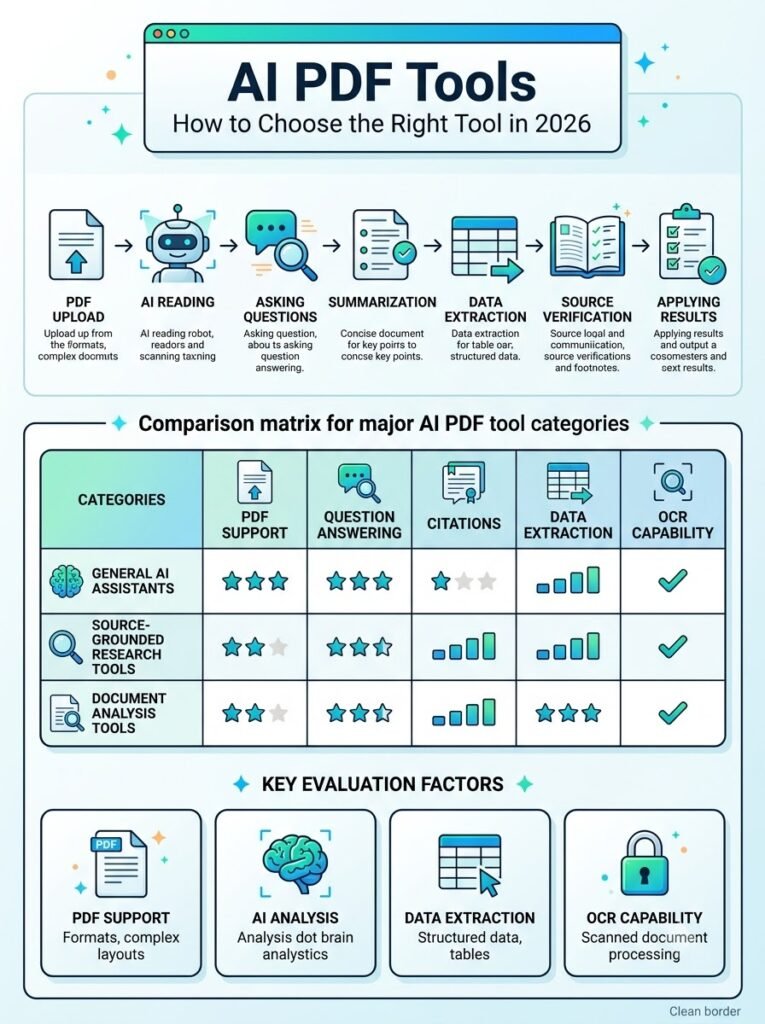
PDF upload ಮಾಡುತ್ತೀರಿ → AI document process ಮಾಡುತ್ತದೆ → question ಕೇಳುತ್ತೀರಿ → relevant answer ಪಡೆಯುತ್ತೀರಿ.
ಉದಾಹರಣೆಗೆ 150-page annual report ಇದ್ದರೆ:
“ಈ reportನಲ್ಲಿ company revenue, expenses ಮತ್ತು profit margin ಬಗ್ಗೆ ಇರುವ ಪ್ರಮುಖ numbers ಅನ್ನು tableನಲ್ಲಿ ಕೊಡು.”
ಎಂದು ಕೇಳಬಹುದು.
ಅಥವಾ research paper ಇದ್ದರೆ:
“ಈ paperನ research question, methodology, dataset, findings ಮತ್ತು limitations ಅನ್ನು Kannadaನಲ್ಲಿ explain ಮಾಡು.”
ಎಂದು ಕೇಳಬಹುದು.
ಇದು PDF ಅನ್ನು simply read ಮಾಡುವುದರಿಂದ document ಜೊತೆ interact ಮಾಡುವ ಕಡೆಗೆ shift ಮಾಡುತ್ತದೆ.
2026ರಲ್ಲಿ AI PDF Tool ಆಯ್ಕೆ ಮಾಡುವಾಗ ಏನು ನೋಡಬೇಕು?
ಒಂದು tool ಅನ್ನು “best” ಎಂದು ಹೇಳುವುದಕ್ಕಿಂತ ಮೊದಲು ನಿಮ್ಮ actual requirement ಅರ್ಥಮಾಡಿಕೊಳ್ಳಬೇಕು.
1. PDF Understanding
Tool documentನ long context ಅನ್ನು ಎಷ್ಟು ಚೆನ್ನಾಗಿ ಅರ್ಥಮಾಡಿಕೊಳ್ಳುತ್ತದೆ?
2. Question Answering
ನೀವು specific question ಕೇಳಿದಾಗ correct sectionನಿಂದ answer ಕೊಡುತ್ತದೆಯೇ?
3. Citations
Answer ಯಾವ page ಅಥವಾ sourceನಲ್ಲಿ ಇದೆ ಎಂದು verify ಮಾಡಬಹುದೇ?
4. Data Extraction
Tables, numbers, names ಮತ್ತು structured information extract ಮಾಡಬಹುದೇ?
5. Visual Understanding
PDFನಲ್ಲಿ charts, diagrams ಮತ್ತು images ಇದ್ದರೆ ಅವುಗಳನ್ನು understand ಮಾಡಬಹುದೇ?
6. Multiple PDFs
ಒಂದಕ್ಕಿಂತ ಹೆಚ್ಚು documents compare ಮಾಡಬಹುದೇ?
7. Editing
PDFನ text ಅಥವಾ structure edit ಮಾಡಬೇಕಾದರೆ tool support ಮಾಡುತ್ತದೆಯೇ?
8. Privacy
Sensitive documents upload ಮಾಡುವಾಗ data handling policy ಏನು?
9. Pricing
Free tierನಲ್ಲಿ ಎಷ್ಟು ಕೆಲಸ ಮಾಡಬಹುದು? Paid plan ಯಾವಾಗ ಬೇಕಾಗುತ್ತದೆ?
ಈ criteriaಗಳನ್ನು ನೋಡಿದರೆ tool selection ಹೆಚ್ಚು practical ಆಗುತ್ತದೆ.
1. ChatGPT: Flexible AI PDF Analysis
ChatGPT ಅನ್ನು already AI assistant ಆಗಿ ಬಳಸುತ್ತಿರುವ students ಮತ್ತು professionalsಗೆ PDF workflow ತುಂಬಾ natural ಆಗಿರಬಹುದು.
OpenAI documentation ಪ್ರಕಾರ ChatGPT uploaded documentsನಿಂದ information summarize, compare, transform ಮತ್ತು extract ಮಾಡಬಹುದು. PDF upload ಮಾಡಿ specific topic references ಹುಡುಕುವುದು ಮತ್ತು document sections extract ಮಾಡುವುದು ಕೂಡ supported workflowsನಲ್ಲಿ ಸೇರಿವೆ.
ChatGPTನಲ್ಲಿ PDF ಮತ್ತು ಇತರ supported files upload ಮಾಡಿ summary, information extraction ಮತ್ತು document-based questions ಕೇಳಬಹುದು. ಹೆಚ್ಚಿನ detailsಗಾಗಿ ChatGPT file uploads documentation ನೋಡಿ.
ಉದಾಹರಣೆಗೆ ನೀವು textbook upload ಮಾಡಿ:
“Chapter 5 ಅನ್ನು simple Kannada Hybrid languageನಲ್ಲಿ explain ಮಾಡು.”
ಎಂದು ಕೇಳಬಹುದು.
ಅಥವಾ ಎರಡು documents upload ಮಾಡಿ:
“ಈ ಎರಡು PDFsನಲ್ಲಿ ಇರುವ differences tableನಲ್ಲಿ ತೋರಿಸು.”
ಎಂದು ಕೇಳಬಹುದು.
ChatGPTನಲ್ಲಿ useful PDF workflows
- PDF summary
- Question answering
- Document comparison
- Information extraction
- Research notes
- Study material creation
- Table/data analysis
- Document rewriting
- Long document explanation
ಇದು general-purpose AI assistant ಆಗಿರುವುದರಿಂದ PDF ಹೊರತಾಗಿಯೂ content creation, analysis ಮತ್ತು researchಗೆ ಬಳಸಬಹುದು.
ಒಂದು limitation
ChatGPTನಲ್ಲಿ PDF visual handling plan ಮತ್ತು workflow ಮೇಲೆ depend ಆಗುತ್ತದೆ. OpenAI documentation ಪ್ರಕಾರ embedded PDF visualsನ native visual retrieval ಈಗ Enterprise-specific capability ಆಗಿದೆ; ಇತರ plansನಲ್ಲಿ document retrieval ಮುಖ್ಯವಾಗಿ text-based ಆಗಿರಬಹುದು.
ಅಂದರೆ PDFನಲ್ಲಿ complex charts, scanned pages ಅಥವಾ image-heavy content ಇದ್ದರೆ output ಅನ್ನು verify ಮಾಡುವುದು ಮುಖ್ಯ.
2. Google Gemini: PDF + Google Ecosystem
Google Gemini ಕೂಡ documents upload ಮಾಡಿ summaries, answers ಮತ್ತು insights ಪಡೆಯಲು support ಮಾಡುತ್ತದೆ.
Googleನ current documentation ಪ್ರಕಾರ Gemini Appsನಲ್ಲಿ documents, spreadsheets, notebooks, photos, videos ಸೇರಿದಂತೆ ಹಲವು file types upload ಮಾಡಿ analysis ಮಾಡಬಹುದು. ಒಂದೇ promptನಲ್ಲಿ subject to availability up to 10 files upload ಮಾಡಬಹುದು; supported non-video filesಗೆ 100 MB ವರೆಗೆ file size limit ಇದೆ.
ಇದರಿಂದ students ಮತ್ತು professionalsಗೆ ಕೆಲವು practical advantages ಇವೆ.
ನಿಮ್ಮ documents Google Driveನಲ್ಲಿ ಇದ್ದರೆ Drive integration useful ಆಗಬಹುದು. Work ಅಥವಾ school accountನಲ್ಲಿ eligible Google Workspace connections ಮೂಲಕ Drive documents ಹುಡುಕಿ summarize ಮಾಡುವ workflows ಕೂಡ available.
Geminiನಲ್ಲಿ useful PDF workflows
- PDF summary
- Ask questions
- Compare documents
- Extract information
- Google Drive-based research
- Study material analysis
- Data analysis
- Research workflows
Google ecosystem already ಬಳಸುವ usersಗೆ ಇದು convenient workflow ಆಗಬಹುದು.
ದೊಡ್ಡ documentಗೆ ಗಮನಿಸಬೇಕಾದದ್ದು
Google documentation ಪ್ರಕಾರ very large uploadsನಲ್ಲಿ model ಎಲ್ಲ details ಮತ್ತು connections ಅನ್ನು equally capture ಮಾಡದೇ ಇರಬಹುದು. Google AI Proನಲ್ಲಿ larger context window available ಆಗಿದ್ದು, Google currently describes up to a 1-million-token context window for supported workflows.
ಆದ್ದರಿಂದ “large PDF ಇದೆ ಎಂದರೆ entire document perfect ಆಗಿ understood ಆಗುತ್ತದೆ” ಎಂದು assume ಮಾಡಬೇಡಿ.
Geminiನಲ್ಲಿ documents upload ಮಾಡಿ questions, summaries ಮತ್ತು insights ಪಡೆಯಬಹುದು. Supported files ಮತ್ತು current limitsಗಾಗಿ Gemini file analysis documentation ನೋಡಿ.
3. NotebookLM: Research ಮತ್ತು Source-Based Studyಗೆ Useful
NotebookLMನ approach ಸ್ವಲ್ಪ different.
ಇದು general chatbotಗಿಂತ source-grounded research workspace ರೀತಿಯಲ್ಲಿ useful.
ನೀವು PDFs, documents ಮತ್ತು ಇತರ sources notebookಗೆ ಸೇರಿಸಿ, ಅವುಗಳ ಆಧಾರದ ಮೇಲೆ questions ಕೇಳಬಹುದು.
Googleನ documentation ಪ್ರಕಾರ NotebookLM responses supplied sourcesಗೆ grounded ಆಗಿದ್ದು citations ನೀಡುತ್ತದೆ. Google ತನ್ನ 2026 NotebookLM materialನಲ್ಲಿ Audio Overview, Slide Deck, Infographic ಮತ್ತು Video Overview ಮುಂತಾದ source-based outputs ಕೂಡ highlight ಮಾಡಿದೆ.
ಇದು studentsಗೆ particularly useful.
ಉದಾಹರಣೆಗೆ:
ನಿಮ್ಮ ಬಳಿ:
- textbook PDF
- question bank
- class notes
- research paper
ಇದ್ದರೆ, ಇವೆಲ್ಲವನ್ನು ಒಂದೇ notebookನಲ್ಲಿ organize ಮಾಡಿ:
“ಈ four sourcesನಿಂದ II PUC examಗೆ important concepts identify ಮಾಡು.”
ಎಂದು ಕೇಳಬಹುದು.
NotebookLMನಲ್ಲಿ useful workflows
- Research paper analysis
- Multiple source comparison
- Study notes
- Source-grounded Q&A
- Audio overviews
- Research organization
- Exam preparation
NotebookLMನ source-based workflow ಬಗ್ಗೆ ಇನ್ನಷ್ಟು ತಿಳಿದುಕೊಳ್ಳಲು NotebookLM source-based Q&A documentation ನೋಡಬಹುದು.
ಇದರ ವಿಶೇಷತೆ
Answer external web knowledgeಗಿಂತ ನಿಮ್ಮ supplied sources ಮೇಲೆ grounded ಆಗಿರುವುದು research workflowsನಲ್ಲಿ useful.
ಆದರೆ citations ಇದ್ದರೂ AI output ಅನ್ನು blindly accept ಮಾಡಬೇಡಿ. Google ಕೂಡ NotebookLM inaccuracies generate ಮಾಡಬಹುದು ಎಂದು notes ಮಾಡುತ್ತದೆ.
4. Claude: Long Documents ಮತ್ತು PDF Understanding
Anthropicನ Claude ಕೂಡ PDF analysisಗೆ strong option.
Anthropic documentation ಪ್ರಕಾರ Claude PDF, DOCX, CSV, TXT, HTML, EPUB ಮತ್ತು ಇತರ document types support ಮಾಡುತ್ತದೆ. Supported Claude models PDFನ text ಜೊತೆಗೆ images, charts ಮತ್ತು graphicsನ visual elements ಕೂಡ analyze ಮಾಡಬಹುದು; ಆದರೆ visual PDF analysisಗೆ page-count/model limitations ಇವೆ.
ಇದರಿಂದ long-form reading workflowsನಲ್ಲಿ Claude useful ಆಗಬಹುದು.
ಉದಾಹರಣೆಗೆ:
“ಈ research paperನ argument ಅನ್ನು section-by-section analyze ಮಾಡಿ.”
ಅಥವಾ:
“ಈ 80-page business reportನ strategic implications summarize ಮಾಡು.”
ಎಂದು ಕೇಳಬಹುದು.
Claudeನಲ್ಲಿ useful workflows
- Research papers
- Long reports
- PDF Q&A
- Document comparison
- Visual PDF analysis
- Structured summaries
- Professional writing based on documents
Claudeನಲ್ಲಿ PDF ಸೇರಿದಂತೆ ಹಲವು document formats upload ಮಾಡಿ analysis ಮಾಡಬಹುದು. Supported documents ಬಗ್ಗೆ Claude PDF analysis documentationನಲ್ಲಿ ಇನ್ನಷ್ಟು ತಿಳಿದುಕೊಳ್ಳಬಹುದು.
Claude Pro currently costs $20/month in the US, with local-currency pricing where supported; actual local pricing can vary by region and taxes.
ಕೆಲವು AI PDF Tools documentನಲ್ಲಿರುವ relevant information ಅನ್ನು retrieve ಮಾಡಿ ಅದರ ಆಧಾರದ ಮೇಲೆ answer generate ಮಾಡುತ್ತವೆ. ಈ process ಅನ್ನು deeper ಆಗಿ ಅರ್ಥಮಾಡಿಕೊಳ್ಳಲು ನಮ್ಮ RAG AI guide ಸಹಾಯ ಮಾಡುತ್ತದೆ.
5. Adobe Acrobat AI Assistant: PDF Editing + AI
Adobe Acrobatನ biggest difference ಎಂದರೆ ಇದು pure AI chatbot ಅಲ್ಲ.
ಇದು PDF-native productivity platform.
Adobe Acrobat AI Assistantನಲ್ಲಿ documents summarize ಮಾಡಬಹುದು, questions ಕೇಳಬಹುದು ಮತ್ತು source documentಗೆ citations ಮೂಲಕ answers verify ಮಾಡಬಹುದು. Adobe also offers AI-powered PDF workflows for editing, converting, organizing ಮತ್ತು document actions.
ಉದಾಹರಣೆಗೆ:
“ಈ PDFನಲ್ಲಿ pricing table identify ಮಾಡು.”
ಮಾತ್ರವಲ್ಲದೆ:
“ಈ documentನಲ್ಲಿ ಇರುವ ಈ section rewrite ಮಾಡು.”
ಅಥವಾ PDFನಲ್ಲಿ text replace, redact, highlight ಅಥವಾ restructure ಮಾಡಲು conversational actions ಬಳಸಬಹುದು. Adobeನ current documentation ಪ್ರಕಾರ AI Assistant natural-language instruction ಮೂಲಕ multiple PDF actions execute ಮಾಡಬಹುದು.
Adobe Acrobatನಲ್ಲಿ useful workflows
- PDF editing
- PDF summarization
- Ask questions
- Document citations
- Redaction
- Conversion
- Signing
- PDF organization
- Business document workflows
India pricing snapshot
Adobe India currently lists Acrobat Standard at ₹477.90/month incl. GST, annual billed monthly, Acrobat Pro at ₹638.38/month incl. GST, and Acrobat Studio at ₹797.68/month incl. GST. AI Assistant is an additional option on applicable Acrobat plans. Pricing and offers can change.
ಈ ಕಾರಣದಿಂದ PDF editing ಕೂಡ ಬೇಕಾಗಿರುವ professionalsಗೆ Acrobat ಒಂದು different category.
6. Perplexity: PDF + Web Research
Perplexityನ strength pure PDF readingಗಿಂತ document + web research combinationನಲ್ಲಿ ಹೆಚ್ಚು useful ಆಗಬಹುದು.
Perplexity documentation ಪ್ರಕಾರ Pro users PDFs ಸೇರಿದಂತೆ files upload ಮಾಡಿ analysis ಮಾಡಬಹುದು ಮತ್ತು file analysis ಜೊತೆಗೆ web research capabilities ಬಳಸಬಹುದು. Pro Search multiple web sources research ಮಾಡಿ direct source links/citations ನೀಡುತ್ತದೆ.
ಉದಾಹರಣೆಗೆ:
ನೀವು ಒಂದು industry report PDF upload ಮಾಡಿ:
“ಈ reportನಲ್ಲಿ ಹೇಳಿರುವ market trend ಅನ್ನು current web information ಜೊತೆ compare ಮಾಡು.”
ಎಂದು ಕೇಳಬಹುದು.
ಇಲ್ಲಿ PDF ಮಾತ್ರ ಅಲ್ಲದೆ external web information ಕೂಡ relevant.
Useful workflows
- Research
- Market reports
- PDF + web comparison
- Academic research
- Current information verification
- Competitive research
Perplexity Pro current support pageನಲ್ಲಿ increased file uploads and analysis access, advanced models ಮತ್ತು research features mention ಮಾಡಲಾಗಿದೆ.
7. Gemini Notebook: Multiple Sources ಜೊತೆ Organized Research
Google ecosystemನಲ್ಲಿ research-heavy usersಗೆ Gemini Notebook ಕೂಡ ಗಮನಿಸಬೇಕಾದ workflow.
Googleನ current documentation ಪ್ರಕಾರ Gemini notebooksನಲ್ಲಿ sources add ಮಾಡಿ continuous conversation ನಡೆಸಬಹುದು; notebook sources ಮತ್ತು instructionsನ context remember ಮಾಡುತ್ತದೆ. Google AI plan ಮೇಲೆ source limits ಬದಲಾಗುತ್ತವೆ ಮತ್ತು ಕೆಲವು plansನಲ್ಲಿ up to 600 sources support ಇದೆ.
ಇದು single PDF summarize ಮಾಡುವುದಕ್ಕಿಂತ:
Many documents → One organized research workspace
ಎಂಬ workflowಗೆ ಹೆಚ್ಚು useful.
Student example:
Physics textbook
Question bank
Previous-year papers
Class notes
→
Gemini Notebook
→
Exam preparation workflow
ಈ type of organization ದೊಡ್ಡ advantage ಆಗಬಹುದು.
Quick Comparison of AI PDF Tools
| Tool | PDF Summary | Ask Questions | Data Extraction | Multiple Sources | PDF Editing | Web Research | Best Use |
|---|---|---|---|---|---|---|---|
| ChatGPT | Yes | Yes | Yes | Yes | Limited | Yes | General AI PDF work |
| Gemini | Yes | Yes | Yes | Yes | Limited | Yes | Google ecosystem |
| NotebookLM | Yes | Yes | Good | Strong | No | Source-focused | Research & study |
| Claude | Yes | Yes | Yes | Yes | Limited | Yes | Long documents |
| Adobe Acrobat AI | Yes | Yes | Yes | Yes | Strong | Limited | PDF editing + AI |
| Perplexity | Yes | Yes | Yes | Yes | Limited | Strong | PDF + web research |
| Gemini Notebook | Yes | Yes | Yes | Strong | No | Yes | Multi-source research |
This table is a use-case comparison, not a universal ranking. Capabilities, limits and plan availability can change.
PDFನಿಂದ tables, numbers ಅಥವಾ structured data extract ಮಾಡಿದ ನಂತರ ಅದರ accuracy ಮತ್ತು reliability check ಮಾಡುವುದು ಕೂಡ ಮುಖ್ಯ. ಈ ವಿಷಯವನ್ನು AI Data Observability ಮೂಲಕ ಇನ್ನಷ್ಟು ವಿವರವಾಗಿ ಅರ್ಥಮಾಡಿಕೊಳ್ಳಬಹುದು.
AI PDF Tools: Studentsಗೆ ಯಾವ Workflow?
Studentಗೆ PDF tool ಆಯ್ಕೆ ಮಾಡುವಾಗ priceಗಿಂತ study workflow ಮುಖ್ಯ.
Suppose ನಿಮ್ಮ ಬಳಿ ಒಂದು 250-page textbook ಇದೆ.
Traditional method:
PDF open
→ Chapter ಹುಡುಕು
→ Pages ಓದು
→ Notes ಬರೆಯು
→ Questions ಹುಡುಕು
→ Revision
AI workflow:
PDF upload
→ Chapter summary
→ Concept explanation
→ Important questions
→ Flashcards
→ Practice questions
→ Revision notes
ಇದು study time reduce ಮಾಡಲು ಸಹಾಯ ಮಾಡಬಹುದು.
Example Prompt
“ಈ PDFನ Chapter 3 ಅನ್ನು II PUC studentಗೆ ಅರ್ಥವಾಗುವ Kannada Hybrid languageನಲ್ಲಿ explain ಮಾಡು. Important definitions, formulas, examples ಮತ್ತು exam-relevant points ಬೇರೆ sectionsನಲ್ಲಿ ಕೊಡು.”
ಇದು simple summaryಗಿಂತ much more useful.
AI PDF Tools: Professionalsಗೆ ಯಾವ Workflow?
Professional environmentನಲ್ಲಿ PDF tasks ಬೇರೆ.
ನಿಮ್ಮ ಬಳಿ:
- proposal
- contract
- annual report
- invoice
- research report
- meeting document
ಇರಬಹುದು.
ನೀವು AIಗೆ ಕೇಳಬಹುದು:
“ಈ contractನಲ್ಲಿ payment terms ಮತ್ತು termination clauses identify ಮಾಡು.”
ಅಥವಾ:
“ಈ 3 reportsನ key differences tableನಲ್ಲಿ ಕೊಡು.”
ಅಥವಾ:
“ಈ annual reportನ revenue, operating cost ಮತ್ತು profit figures extract ಮಾಡಿ tableನಲ್ಲಿ ಕೊಡು.”
ಇಲ್ಲಿ AI PDF tool reading assistant ಆಗಿ ಕೆಲಸ ಮಾಡಬಹುದು.
ಆದರೆ legal, financial ಅಥವಾ compliance documentsನಲ್ಲಿ AI output ಅನ್ನು final authority ಎಂದು treat ಮಾಡಬೇಡಿ.
Original PDFನಲ್ಲಿ figures ಮತ್ತು clauses verify ಮಾಡುವುದು ಅಗತ್ಯ.
ನೀವು ಪ್ರತಿದಿನ reports, research papers ಅಥವಾ business PDFs ಜೊತೆ ಕೆಲಸ ಮಾಡುತ್ತಿದ್ದರೆ, ಈ workflow ಅನ್ನು ನಿಮ್ಮದೇ personal AI assistant setup ಜೊತೆ combine ಮಾಡಬಹುದು.
PDFನಿಂದ Data Extract ಮಾಡುವುದು ಹೇಗೆ?
ಇದು AI PDF Toolsನ ಅತ್ಯಂತ useful featuresಗಳಲ್ಲಿ ಒಂದು.
Suppose PDFನಲ್ಲಿ ಈ table ಇದೆ:
| Product | Sales | Growth |
|---|---|---|
| Product A | ₹10L | 12% |
| Product B | ₹8L | 18% |
| Product C | ₹14L | 9% |
ನೀವು ಕೇಳಬಹುದು:
“ಈ PDFನ sales table ಅನ್ನು Excel-ready formatನಲ್ಲಿ extract ಮಾಡು. Product, Sales ಮತ್ತು Growth columns ಮಾತ್ರ ಕೊಡು.”
AI structured output ಕೊಡಬಹುದು.
ಆದರೆ ಒಂದು important rule:
Numbers verify ಮಾಡಿ.
Especially:
- financial reports
- scientific papers
- invoices
- tax documents
- legal documents
ಇವುಗಳಲ್ಲಿ OCR ಅಥವಾ table extraction errors ಆಗಬಹುದು.
Scanned PDF ಮತ್ತು Normal PDF ನಡುವಿನ Difference
ಎಲ್ಲ PDFs ಒಂದೇ ರೀತಿಯಲ್ಲ.
Text-based PDF
ನೀವು text select ಮಾಡಬಹುದು.
ಇಂತಹ PDF AIಗೆ comparatively easier.
Scanned PDF
ಪ್ರತಿ page ಒಂದು image ಆಗಿರಬಹುದು.
ಇಲ್ಲಿ OCR ಅಥವಾ visual document understanding ಅಗತ್ಯವಾಗಬಹುದು.
Image-heavy PDF
Charts, diagrams, figures ಮತ್ತು screenshots important ಆಗಿರಬಹುದು.
ಇಲ್ಲಿ text extraction ಮಾತ್ರ ಸಾಕಾಗುವುದಿಲ್ಲ.
ChatGPTನ current documentation ಪ್ರಕಾರ non-Enterprise plansನಲ್ಲಿ PDF processing primarily text-based retrieval ಆಗಿರಬಹುದು, ಆದರೆ Enterprise visual retrieval embedded PDF visualsನ್ನೂ analyze ಮಾಡುತ್ತದೆ.
Claude ಕೂಡ supported modelsನಲ್ಲಿ PDF visuals analyze ಮಾಡಬಹುದು, ಆದರೆ page-count ಮತ್ತು model limitations ಇವೆ.
ಆದ್ದರಿಂದ tool ಆಯ್ಕೆ ಮಾಡುವಾಗ:
“PDF support ಇದೆಯೇ?”
ಎಂಬ ಪ್ರಶ್ನೆಗಿಂತ:
“ನನ್ನ PDF ಯಾವ type?”
ಎಂಬ ಪ್ರಶ್ನೆ ಹೆಚ್ಚು important.
AI PDF Toolsನಲ್ಲಿ Citations ಯಾಕೆ ಮುಖ್ಯ?
AI answer correct ಆಗಿದೆಯೇ ಎಂದು verify ಮಾಡಲು citation ಅಥವಾ source reference ಬಹಳ useful.
ಉದಾಹರಣೆಗೆ AI ಹೇಳುತ್ತದೆ:
“Company revenue 24% ಹೆಚ್ಚಾಗಿದೆ.”
ನೀವು ಕೇಳಬೇಕಾದದ್ದು:
“ಈ number PDFನ ಯಾವ pageನಲ್ಲಿ ಇದೆ?”
Source citation ಇದ್ದರೆ verification easy.
Adobe AI Assistant source documentsಗೆ citations link ಮಾಡುತ್ತದೆ.
NotebookLM ಕೂಡ supplied sourcesನ citations ಮೂಲಕ answer verify ಮಾಡಲು ಅವಕಾಶ ನೀಡುತ್ತದೆ.
Research workನಲ್ಲಿ ಇದು ದೊಡ್ಡ advantage.
AI PDF Tools ಮತ್ತು Hallucination
PDF upload ಮಾಡಿದ ಮೇಲೆ AI answer accurate ಆಗುತ್ತದೆ ಎಂದು assume ಮಾಡಬೇಡಿ.
AI ಇನ್ನೂ ತಪ್ಪು ಮಾಡಬಹುದು.
ಕೆಲವೊಮ್ಮೆ:
- wrong number
- wrong page
- missing context
- incorrect interpretation
- table extraction error
ಆಗಬಹುದು.
ಅದಕ್ಕಾಗಿ important documentsಗೆ ಈ workflow ಬಳಸಿ:
AI Answer
↓
Source Citation
↓
Original PDF
↓
Verification
ಇದು especially research, finance, law ಮತ್ತು educationನಲ್ಲಿ important.
Privacy: Sensitive PDFs Upload ಮಾಡುವ ಮೊದಲು
PDFನಲ್ಲಿ sensitive information ಇರಬಹುದು.
ಉದಾಹರಣೆಗೆ:
- Aadhaar details
- bank statements
- salary slips
- contracts
- customer information
- medical records
- confidential company documents
ಇಂತಹ files random AI toolಗೆ upload ಮಾಡುವ ಮೊದಲು privacy policy ಮತ್ತು data-use terms check ಮಾಡಿ.
OpenAI documentation file uploads ಮತ್ತು data retention/use ಬಗ್ಗೆ plan-specific policies ಹೊಂದಿದೆ. Business offerings ಮತ್ತು consumer servicesನಲ್ಲಿ data handling ಬೇರೆ ಆಗಬಹುದು.
Adobe ತನ್ನ AI Assistant pageನಲ್ಲಿ documents, chats ಮತ್ತು interactions protected ಆಗಿದ್ದು customer content Adobe AI models train ಮಾಡಲು ಬಳಸುವುದಿಲ್ಲ ಎಂದು states.
ಇದು ಒಂದು reminder:
AI PDF Toolನಲ್ಲಿ feature listಗಿಂತ data policy ಕೂಡ equally important.
AI PDF Toolsನಲ್ಲಿ Common Mistakes
Mistake 1: Entire textbookಗೆ generic summary ಕೇಳುವುದು
“Summarize this PDF.”
ಎಂಬ prompt ತುಂಬಾ broad.
Better:
“Chapter 4ನ concepts, examples ಮತ್ತು exam-relevant points ಅನ್ನು separate sectionsನಲ್ಲಿ summarize ಮಾಡು.”
Mistake 2: Source verify ಮಾಡದೇ answer ಬಳಸುವುದು
AI answer correct ಎಂದು assume ಮಾಡಬೇಡಿ.
Citation ಅಥವಾ original page check ಮಾಡಿ.
Mistake 3: Scanned PDF ಅನ್ನು normal PDF ಎಂದು treat ಮಾಡುವುದು
Image-based documentನಲ್ಲಿ OCR/visual limitations ಇರಬಹುದು.
Mistake 4: Huge PDF ಅನ್ನು ಒಂದೇ promptನಲ್ಲಿ overload ಮಾಡುವುದು
Very large documentsನಲ್ಲಿ relevant section ಅಥವಾ chapter-wise analysis ಹೆಚ್ಚು reliable ಆಗಬಹುದು.
Google ಕೂಡ very large filesನಲ್ಲಿ details miss ಆಗುವ ಸಾಧ್ಯತೆ ಬಗ್ಗೆ guidance ನೀಡುತ್ತದೆ.
Mistake 5: Confidential documents upload ಮಾಡುವುದು
Sensitive PDF ಇದ್ದರೆ toolನ privacy/data handling policy ಮೊದಲು ನೋಡಿ.
7 Useful Prompts for AI PDF Tools
Prompt 1: Summary
ಈ PDFನ 10 ಪ್ರಮುಖ points ಅನ್ನು Kannada Hybrid languageನಲ್ಲಿ simple ಆಗಿ summarize ಮಾಡು.
Prompt 2: Study
ಈ PDFನ Chapter 5 ಅನ್ನು studentಗೆ ಅರ್ಥವಾಗುವ ರೀತಿಯಲ್ಲಿ explain ಮಾಡು. Important concepts, definitions, examples ಮತ್ತು exam points separate ಮಾಡಿ.
Prompt 3: Research
ಈ research paperನ research question, methodology, dataset, findings ಮತ್ತು limitations ಅನ್ನು tableನಲ್ಲಿ explain ಮಾಡು.
Prompt 4: Data Extraction
ಈ PDFನಲ್ಲಿರುವ ಎಲ್ಲಾ financial numbers ಅನ್ನು original labels ಜೊತೆಗೆ extract ಮಾಡಿ tableನಲ್ಲಿ ಕೊಡು.
Prompt 5: Comparison
ಈ ಎರಡು PDFsನ key differences ಅನ್ನು topic-wise comparison tableನಲ್ಲಿ ತೋರಿಸು.
Prompt 6: Find Information
ಈ PDFನಲ್ಲಿ “artificial intelligence”ಗೆ ಸಂಬಂಧಿಸಿದ ಎಲ್ಲಾ sections identify ಮಾಡಿ ಮತ್ತು page references ಕೊಡು.
Prompt 7: Verification
ನೀನು ನೀಡಿದ ಪ್ರತಿಯೊಂದು ಪ್ರಮುಖ claimಗೆ PDFನಲ್ಲಿ ಇರುವ supporting page ಅಥವಾ section identify ಮಾಡು. Sourceನಲ್ಲಿ information ಸಿಗದಿದ್ದರೆ “Not found in source” ಎಂದು ಹೇಳು.
ಈ ಕೊನೆಯ prompt ವಿಶೇಷವಾಗಿ useful.
Free vs Paid AI PDF Tools
Free plans casual PDF workಗೆ ಸಾಕಾಗಬಹುದು.
ಆದರೆ regular usersಗೆ limitations ಎದುರಾಗಬಹುದು:
- file size
- number of uploads
- usage limits
- context
- advanced models
- research features
- PDF editing
ಉದಾಹರಣೆಗೆ ChatGPT file uploads current limits plan-specific ಆಗಿವೆ; OpenAI documentation ಪ್ರಕಾರ Free usersಗೆ daily upload limits ಮತ್ತು filesಗೆ size/token limits ಇವೆ.
Geminiನಲ್ಲಿ ಕೂಡ file upload limits ಮತ್ತು higher limitsಗಾಗಿ Google AI plans ಇವೆ.
Perplexityನಲ್ಲಿ Free plan basic file uploads ನೀಡುತ್ತದೆ; Pro plan increased file and attachment uploads ಮತ್ತು analysis access ನೀಡುತ್ತದೆ.
ಆದ್ದರಿಂದ “free tool” ಎಂದರೆ unlimited tool ಎಂದು assume ಮಾಡಬೇಡಿ.
Pricing: ಯಾವಾಗ Paid Plan ಬೇಕಾಗಬಹುದು?
Pricing frequently change ಆಗುವುದರಿಂದ subscription ತೆಗೆದುಕೊಳ್ಳುವ ದಿನ official pricing page check ಮಾಡುವುದು safest.
Current examples:
Adobe Acrobat Indiaನಲ್ಲಿ Acrobat Standard ₹477.90/month incl. GST, Acrobat Pro ₹638.38/month incl. GST, annual billed monthly plans ಎಂದು Adobe lists ಮಾಡಿದೆ. Acrobat AI Assistant applicable plansಗೆ additional option ಆಗಿದೆ.
Claude Pro USನಲ್ಲಿ $20/month ಎಂದು Anthropic currently lists ಮಾಡುತ್ತದೆ; local pricing region ಮತ್ತು taxes ಪ್ರಕಾರ ಬದಲಾಗಬಹುದು.
Google AI Pro Indiaನಲ್ಲಿ available ಆಗಿದ್ದು expanded Gemini, Deep Research, Gemini Notebook ಮತ್ತು 5 TB storage ಮುಂತಾದ benefits ನೀಡುತ್ತದೆ; current plan benefits ಮತ್ತು limits Google One pageನಲ್ಲಿ update ಆಗುತ್ತವೆ.
Perplexity Free, Pro ಮತ್ತು Max plans ನೀಡುತ್ತದೆ; Pro file analysis ಮತ್ತು research capabilities ಹೆಚ್ಚಿಸುತ್ತದೆ.
ಒಂದು toolಗಾಗಿ subscription ತೆಗೆದುಕೊಳ್ಳುವ ಮೊದಲು ನೀವು PDF work ಎಷ್ಟು frequently ಮಾಡುತ್ತೀರಿ ಎಂದು ನೋಡಿ.
Which AI PDF Tool Fits Your Workflow?
ಇಲ್ಲಿ universal answer ಇಲ್ಲ.
Student
ನಿಮ್ಮ priority:
Study + Notes + Source-based Q&A
ಆಗ NotebookLM ಅಥವಾ Gemini-type workflow useful ಆಗಬಹುದು.
Researcher
ನಿಮ್ಮ priority:
Multiple papers + citations + research
ಆಗ NotebookLM, Claude, Gemini ಅಥವಾ Perplexity workflows compare ಮಾಡಬಹುದು.
Professional
ನಿಮ್ಮ priority:
PDF editing + signing + AI
ಆಗ Adobe Acrobat ಹೆಚ್ಚು relevant category.
General AI User
ನಿಮ್ಮ priority:
PDF + writing + analysis + other AI tasks
ಆಗ ChatGPT ಅಥವಾ Gemini-type general AI assistant workflow convenient ಆಗಬಹುದು.
Web Researcher
ನಿಮ್ಮ priority:
PDF + current web information + citations
ಆಗ Perplexity-type workflow useful ಆಗಬಹುದು.
Google Workspace User
ನಿಮ್ಮ documents already Drive/Gmail/Google ecosystemನಲ್ಲಿ ಇದ್ದರೆ Gemini integration practical advantage ನೀಡಬಹುದು. Google documents ಮತ್ತು connected apps workflows support ಮಾಡುತ್ತದೆ.
AI PDF Tools ಅನ್ನು ಒಂದು Workflowನಲ್ಲಿ Combine ಮಾಡಬಹುದೇ?
ಹೌದು.
ಕೆಲವೊಮ್ಮೆ ಒಂದು tool ಮಾತ್ರ ಬಳಸುವುದಕ್ಕಿಂತ combination useful.
ಉದಾಹರಣೆಗೆ research workflow:
PDF collection
↓
NotebookLM
↓
Source-grounded research
↓
ChatGPT
↓
Detailed explanation / writing
↓
Perplexity
↓
Current web verification
↓
Final document
ಇದು advanced workflow.
ಆದರೆ simple PDF summaryಗಾಗಿ ಮೂರು tools ಬಳಸುವ ಅಗತ್ಯವಿಲ್ಲ.
Simple task → Simple tool
ಎಂಬ rule follow ಮಾಡಿ.
AI PDF Toolsದಿಂದ Freelancersಗೆ Money-Making Opportunities
AI PDF tools ಅನ್ನು content creation ಮಾತ್ರಕ್ಕೆ ಸೀಮಿತ ಮಾಡಬೇಡಿ.
Freelancers ಈ capabilities ಬಳಸಿ document-related services offer ಮಾಡಬಹುದು.
Research Service
Long reports summarize ಮಾಡಿ.
Data Extraction
PDF tables ಅನ್ನು Excel-ready formatಗೆ convert ಮಾಡಿ.
Document Processing
Large documentsನ important information organize ಮಾಡಿ.
Study Material
Textbooksನಿಂದ notes ಮತ್ತು question banks create ಮಾಡಿ.
Business Reports
Company reports summarize ಮಾಡಿ.
Document Comparison
Multiple proposals ಅಥವಾ reports compare ಮಾಡಿ.
ಆದರೆ client confidential documents handle ಮಾಡುವಾಗ privacy ಮತ್ತು permission requirements strictly follow ಮಾಡಬೇಕು.
PDF researchನಿಂದ article, blog post, video script ಅಥವಾ social media content create ಮಾಡಬೇಕಾದರೆ, document analysis ನಂತರ AI Writing Tools ಬಳಸಬಹುದು.
A Practical AI PDF Workflow for You
ನೀವು regular PDF user ಆಗಿದ್ದರೆ ಈ workflow ಸಾಕು:
Step 1: PDF type identify ಮಾಡಿ.
Text PDFನಾ?
Scanned PDFನಾ?
Chart-heavy PDFನಾ?
↓
Step 2: Goal define ಮಾಡಿ.
Summaryನಾ?
Questionsನಾ?
Data extractionನಾ?
Researchನಾ?
Editingನಾ?
↓
Step 3: Appropriate AI PDF Tool select ಮಾಡಿ.
↓
Step 4: Specific prompt ಕೊಡಿ.
↓
Step 5: Answerನಲ್ಲಿ citations/page references ಕೇಳಿ.
↓
Step 6: Important facts original PDFನಲ್ಲಿ verify ಮಾಡಿ.
↓
Step 7: Final notes/data/document prepare ಮಾಡಿ.
ಇದು random “summarize this PDF” workflowಗಿಂತ ಹೆಚ್ಚು reliable.
Final Takeaways
AI PDF Tools document work ಅನ್ನು significantly faster ಮಾಡಬಹುದು.
ಆದರೆ ಒಂದೇ tool ಎಲ್ಲ ಕೆಲಸಕ್ಕೂ perfect ಆಗಿರಬೇಕೆಂದಿಲ್ಲ.
ChatGPT general-purpose PDF analysisಗೆ useful.
Gemini Google ecosystem ಮತ್ತು large-file workflowsನಲ್ಲಿ practical.
NotebookLM source-grounded research ಮತ್ತು studyಗೆ useful.
Claude long documents ಮತ್ತು supported visual PDF analysisಗೆ useful.
Adobe Acrobat AI Assistant PDF editing ಮತ್ತು AI ಅನ್ನು ಒಂದೇ document workflowನಲ್ಲಿ combine ಮಾಡುತ್ತದೆ.
Perplexity PDF analysis ಜೊತೆಗೆ web research combine ಮಾಡಲು useful.
Gemini Notebook multiple sources organize ಮಾಡುವ research workflowಗೆ useful.
ಆದ್ದರಿಂದ tool ಆಯ್ಕೆ ಮಾಡುವಾಗ:
“ಯಾವ tool best?”
ಎಂಬ ಪ್ರಶ್ನೆಗಿಂತ:
“ನನ್ನ PDF ಕೆಲಸ ಯಾವುದು?”
ಎಂಬ ಪ್ರಶ್ನೆ ಕೇಳಿ.
Student ಆಗಿದ್ದರೆ study workflow ನೋಡಿ.
Researcher ಆಗಿದ್ದರೆ citations ಮತ್ತು source grounding ನೋಡಿ.
Professional ಆಗಿದ್ದರೆ editing ಮತ್ತು security ನೋಡಿ.
Business user ಆಗಿದ್ದರೆ data extraction ಮತ್ತು workflow integration ನೋಡಿ.
Creator ಆಗಿದ್ದರೆ PDF research ಅನ್ನು content workflowಗೆ ಹೇಗೆ connect ಮಾಡಬಹುದು ಎಂದು ನೋಡಿ.
AI PDF toolನ ನಿಜವಾದ value PDF ಅನ್ನು summarize ಮಾಡುವುದರಲ್ಲಿ ಮಾತ್ರ ಇಲ್ಲ.
ಅದು documentನಿಂದ useful information ತೆಗೆದು, ಅದನ್ನು ನಿಮ್ಮ next actionಗೆ convert ಮಾಡುವುದರಲ್ಲಿ ಇದೆ.
Frequently Asked Questions
AI PDF Tools ಎಂದರೇನು?
PDF documents ಅನ್ನು AI ಮೂಲಕ summarize, search, question-answer, compare ಮತ್ತು information extraction ಮಾಡಲು ಸಹಾಯ ಮಾಡುವ tools ಅನ್ನು AI PDF Tools ಎಂದು ಕರೆಯಬಹುದು.
PDF ಅನ್ನು AIಗೆ upload ಮಾಡಿ questions ಕೇಳಬಹುದೇ?
ಹೌದು. ChatGPT, Gemini, Claude, NotebookLM, Adobe Acrobat ಮತ್ತು Perplexity ಸೇರಿದಂತೆ ಹಲವು platforms PDF-based question answering workflows support ಮಾಡುತ್ತವೆ. Feature availability plan ಮತ್ತು tool ಪ್ರಕಾರ ಬದಲಾಗುತ್ತದೆ.
Studentsಗೆ AI PDF Tools useful ಆಗಿವೆಯೇ?
ಹೌದು. Textbook, research paper, notes ಮತ್ತು question bankಗಳನ್ನು summarize, explain ಮತ್ತು compare ಮಾಡಲು ಬಳಸಬಹುದು. ಆದರೆ exam preparationನಲ್ಲಿ AI answer ಅನ್ನು textbook ಅಥವಾ original source ಜೊತೆ verify ಮಾಡುವುದು ಮುಖ್ಯ.
PDFನಿಂದ table data extract ಮಾಡಬಹುದೇ?
ಹೌದು, supported AI tools structured information extract ಮಾಡಲು ಸಹಾಯ ಮಾಡಬಹುದು. ಆದರೆ financial ಅಥವಾ scientific numbersನಂತಹ important data ಅನ್ನು original PDFನಲ್ಲಿ verify ಮಾಡುವುದು ಉತ್ತಮ.
Scanned PDF ಅನ್ನು AI ಓದಬಹುದೇ?
ಕೆಲವು tools OCR ಅಥವಾ visual document processing support ಮಾಡುತ್ತವೆ. ಆದರೆ capabilities tool, model, plan ಮತ್ತು PDF type ಮೇಲೆ depend ಆಗುತ್ತವೆ. ChatGPTನ current documentation ಪ್ರಕಾರ visual PDF retrieval ಎಲ್ಲಾ plansನಲ್ಲಿ ಒಂದೇ ರೀತಿಯಾಗಿ available ಇಲ್ಲ.
AI PDF Tools confidential documentsಗೆ safe ಆಗಿವೆಯೇ?
Tool ಮತ್ತು planನ data policy ಮೇಲೆ depend ಆಗುತ್ತದೆ. Sensitive documents upload ಮಾಡುವ ಮೊದಲು privacy, retention ಮತ್ತು training-use policies ಪರಿಶೀಲಿಸಿ.
Adobe Acrobat AI Assistant ಏನು ಮಾಡುತ್ತದೆ?
Adobe Acrobat AI Assistant PDFs summarize ಮಾಡಲು, questions answer ಮಾಡಲು ಮತ್ತು source citations ನೀಡಲು ಸಹಾಯ ಮಾಡುತ್ತದೆ. Acrobatನಲ್ಲಿ PDF editing, conversion, signing ಮತ್ತು other document workflows ಕೂಡ available ಇವೆ.
NotebookLM ಮತ್ತು ಸಾಮಾನ್ಯ AI chatbot ನಡುವಿನ difference ಏನು?
NotebookLM source-grounded research workflowಗೆ ಹೆಚ್ಚು focused. ನಿಮ್ಮ supplied sources ಆಧರಿಸಿ questions ಕೇಳಬಹುದು ಮತ್ತು citations ಮೂಲಕ answers verify ಮಾಡಬಹುದು.
AI PDF Toolಗೆ paid subscription ಬೇಕೇ?
ಅಗತ್ಯವಿಲ್ಲ. ಹಲವು platforms free access ನೀಡುತ್ತವೆ, ಆದರೆ file size, upload count, model access ಅಥವಾ usage limits ಇರಬಹುದು. Regular heavy usersಗೆ paid plans useful ಆಗಬಹುದು.
Conclusion
PDF document workನಲ್ಲಿ AI ಒಂದು ದೊಡ್ಡ workflow change ತರುತ್ತಿದೆ.
ಹಿಂದೆ ಒಂದು long PDF ಅಂದರೆ pages ಓದಿ, search ಮಾಡಿ, notes ತೆಗೆದುಕೊಂಡು manually information organize ಮಾಡಬೇಕಾಗಿತ್ತು.
ಈಗ ನೀವು PDF upload ಮಾಡಿ ಪ್ರಶ್ನೆ ಕೇಳಬಹುದು, summary ಪಡೆಯಬಹುದು, specific information ಹುಡುಕಬಹುದು, multiple documents compare ಮಾಡಬಹುದು ಮತ್ತು ಕೆಲವು toolsನಲ್ಲಿ document edit ಕೂಡ ಮಾಡಬಹುದು.
ಆದರೆ AI PDF Tools ಅನ್ನು ಬಳಸುವಾಗ ಒಂದು important principle ನೆನಪಿಟ್ಟುಕೊಳ್ಳಿ:
AI answer ವೇಗವಾದದ್ದು; original document final source.
ವಿಶೇಷವಾಗಿ financial figures, legal clauses, scientific findings, academic answers ಮತ್ತು business decisionsನಲ್ಲಿ AI output ಅನ್ನು verify ಮಾಡಿ.
ನಿಮ್ಮ requirement simple ಆಗಿದ್ದರೆ simple tool ಸಾಕು.
ನಿಮ್ಮ requirement research-heavy ಆಗಿದ್ದರೆ source grounding ಮತ್ತು citations ನೋಡಿ.
PDF editing ಬೇಕಿದ್ದರೆ PDF-native tool ನೋಡಿ.
Google ecosystemನಲ್ಲಿ already ಕೆಲಸ ಮಾಡುತ್ತಿದ್ದರೆ integration value ನೋಡಿ.
ಮತ್ತು multiple AI tools subscribe ಮಾಡುವ ಮೊದಲು ನಿಮ್ಮ actual PDF workflow identify ಮಾಡಿ.
ಸರಿಯಾದ tool ಆಯ್ಕೆ ಮಾಡಿದರೆ ಒಂದು 100-page document ಅನ್ನು manually ಓದುವ ಕೆಲಸವನ್ನು replace ಮಾಡುವುದು ಮಾತ್ರವಲ್ಲ, ಅದರಿಂದ questions, notes, insights, structured data ಮತ್ತು next actions ಪಡೆಯುವ complete workflow ಆಗಿ AI PDF tools ಬಳಸಬಹುದು.